In short
- Apply and create XDelta (VCDIFF) patches through a simple window, with the xdelta3 engine built in.
- Safety features: checksum validation, checksums written into new patches, and an option to keep the original file.
- Creation controls: compression level, secondary compression, source window size and patch descriptions.
- Portable builds for Windows, macOS and Linux (plus Flathub). Free and open source under GPL-2.0.
Apply XDelta patches
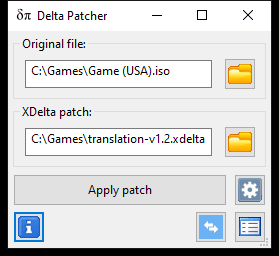
The core feature. Choose an Original file and an XDelta patch, click Apply patch, and Delta Patcher rebuilds the modified file using xdelta3. It opens in this mode every time it starts.
- Practical example
- You download a fan translation distributed as a .xdelta file, select your own copy of the game image, and apply it in a few clicks.
- Who benefits
- Anyone who’s been given a patch and wants to use it without learning command-line tools.
Create XDelta patches
Switch to patch creation mode to compare an Original file with a Modified file and save the differences as a new .xdelta patch. The patch is a standard xdelta3 file that other XDelta tools can apply too.
- Practical example
- A modder finishes editing a disc image and creates a small patch to share instead of the full image.
- Who benefits
- Translators, modders and developers distributing changes to files.
Checksum validation and patch checksums
Since 2.0When applying, Checksum validation (on by default) checks every rebuilt window against the Adler-32 checksums stored in the patch and stops on a mismatch. When creating, Add Checksum to patch (also on by default) writes those checksums, so your users get the same protection.
Since version 3.1.2, the most common failure shows a plain-language message: “The file you are trying to patch is not the right one.”
- Practical example
- Someone tries a European patch on a US game image. Instead of producing a corrupted file, Delta Patcher stops and explains the file isn’t the right one.
- Who benefits
- Everyone. It turns a silent, confusing failure into a clear error.
Backup original file
Since 2.0Delta Patcher writes the patched file next to the original. With Backup original file off (the default), a successful patch replaces the original. With it on, the original stays and the result is saved as namePATCHED.ext. The setting isn’t remembered between launches.
- Practical example
- You want to compare the patched and unpatched versions, so you tick the option and get
Game (USA).isoandGame (USA)PATCHED.isoside by side. - Who benefits
- Anyone without a separate backup of their original file.
Patch descriptions and the Patch info tooltip
Since 2.0Patches created with Delta Patcher can include a Unicode description. When someone loads that patch, Delta Patcher shows the text in a Patch info tooltip (since 3.1.2; earlier versions printed it in the log). The description lives in the patch’s VCDIFF application header, so other tools can still apply the patch.
- Practical example
- A patch author writes “Apply to Game (USA).iso, revision 1.0” plus its SHA-1, and users see it as soon as they select the patch.
- Who benefits
- Patch authors who want fewer support questions, and users who need to know which source file to use.
Drag and drop
Since 2.0 (creation mode: 2.0.1)In application mode, drop files anywhere on the window: a file ending in .xdelta goes into the XDelta patch field and anything else into the Original file field. In creation mode, drop files directly onto the Original file or Modified file fields.
- Practical example
- You drag a game image and then a patch from your file manager, and both fields fill in without a single file dialog.
- Who benefits
- Anyone who patches files often.
Compression level and secondary compression
Since 2.0 (secondary compression: 3.0.0)When creating patches, set the Main compression level from 0 to 9 (default 5) and choose Secondary compression: lzma, djw, fgk or none (default). Delta Patcher can apply patches that use any of these compressors.
- Practical example
- For a large translation patch, a creator uses level 9 with lzma to cut the download size, knowing their users run a current Delta Patcher.
- Who benefits
- Patch authors distributing large patches.
Source window size
Since 2.0Src Window Size sets how much of the original file xdelta3 searches at once when creating a patch: Auto (xdelta3’s 64 MB default) or 8 MB to 1024 MB. Larger windows find matches for data that moved further, which can shrink patches for big files.
- Practical example
- A patch for a 4 GB image with a new file inserted near the start comes out much smaller after raising the window to 512 MB.
- Who benefits
- Authors of patches for large disc images.
Large file support (over 4 GB)
Since 3.1.5Delta Patcher can apply and create patches for files larger than 4 GB, such as dual-layer DVD images. Version 3.1.5 added this and updated the embedded xdelta3 library to 3.1.0.
- Practical example
- Applying a patch to a 7 GB disc image works without switching to the command line.
- Who benefits
- Anyone working with DVD-sized or larger images.
Self-contained xdelta3 engine
Since 3.0.0 (as a library)Many XDelta GUIs are front-ends that run a separate xdelta3 executable. Delta Patcher compiles xdelta3 3.1.0 into the program as a library, with its libraries statically linked (except GTK on Linux). There’s no xdelta3 install, no .NET runtime, and since 3.0.0 no helper executable extracted at runtime, a change the changelog says was made to avoid antivirus false positives.
- Practical example
- You copy the program to a new PC and it works immediately, with nothing else to install.
- Who benefits
- Anyone who wants a tool that just runs, including on locked-down or offline machines.
Native builds for Windows, macOS and Linux
Since 2.0 (Linux), 3.0.1 (macOS builds)Delta Patcher uses wxWidgets, so it looks and behaves like a native app on each system. Current builds: Windows 7 or later in 64-bit and 32-bit, macOS 11 Big Sur or later as a universal app for Apple silicon and Intel, Linux x86-64 with GTK 3, and Flathub for x86-64 and ARM64 (Flatpak support added in 3.1.3).
- Practical example
- A translation team writes one set of instructions that works for users on all three systems.
- Who benefits
- Mixed-platform communities and anyone on macOS or Linux, where XDelta GUIs are rarer.
Open patches directly
Since 2.0Delta Patcher accepts a .xdelta file as a start-up argument and loads it into the XDelta patch field. That means you can associate .xdelta files with Delta Patcher and double-click a patch to open it ready to apply.
- Practical example
- After setting Delta Patcher as the default app for .xdelta files, double-clicking a patch opens it with the patch already selected.
- Who benefits
- People who apply patches regularly.
Log window and clear error messages
Since 3.1.2 (current log behavior)A timestamped log records each file selected and every result, including the exact xdelta3 message when something fails. Since 3.1.2 the log is hidden by default to keep the window compact; the bottom-right button shows it.
- Practical example
- A patch fails with “See log for more information”; the log shows
file open failed, pointing to a permissions problem. - Who benefits
- Anyone troubleshooting, and helpers who need the exact error text.
Dark mode and high-DPI support
Since 3.1 (dark mode), 3.1.3 (high DPI)On Windows 10 and later, Delta Patcher follows the system dark mode setting. Version 3.1.3 added proper scaling for high-DPI displays, and 3.1.4 fixed button alignment on modern macOS.
- Practical example
- On a 4K laptop screen with dark mode on, the window renders sharply and matches the rest of the system.
- Who benefits
- Users on modern displays and systems.
Free and open source
Delta Patcher is released under the GNU General Public License v2.0. The full source code, build instructions and issue tracker are on GitHub (opens external site), and anyone can build it with CMake.
- Practical example
- A Linux distribution packager builds Delta Patcher from source, and a curious user reads exactly how output files are named.
- Who benefits
- Anyone who values transparency, and developers who want to learn from or contribute to it.
When each feature arrived
| Version | Released | Notable additions |
|---|---|---|
| 1.0 | 2014 | Initial public release (Windows) |
| 2.0 | 2015 | xdelta embedded in the program; checksum, backup, compression and window options; patch descriptions; drag and drop; Linux support |
| 2.0.1 | 2017 | Drag and drop in patch creation mode |
| 3.0.0 | 2022 | xdelta3 built in as a library; secondary compression (including lzma); single edition instead of Lite and full |
| 3.0.1 | 2022 | Memory leak fix; first macOS builds |
| 3.1 | 2023 | Windows dark mode; Windows 7 or later required |
| 3.1.2 | 2023 | Patch info tooltip; plain-language checksum mismatch message; log hidden by default |
| 3.1.3 | 2024 | High-DPI displays; Flatpak support; 32-bit Windows builds return |
| 3.1.5 | 2024 | Files over 4 GB; xdelta3 library 3.1.0 |
| 3.1.6 | 2025 | Fixed bug with paths containing non-ASCII characters on Linux; Updated wxWidgets to official v3.3.1; Updated liblzma to stable v5.8.1 |
What Delta Patcher doesn’t do
Knowing the limits saves time. Delta Patcher:
- Only supports XDelta patches. IPS, UPS, BPS and PPF need other tools. Which tool opens which format.
- Doesn’t let you choose the output location or name. Output goes next to the original.
- Doesn’t remember settings. Options reset each time it starts.
- Has no batch or command-line patching mode. Use xdelta3 for scripts.
- Doesn’t calculate or display file checksums. Use your system’s tools to verify source files.
- Patches one file at a time. Each patch maps one source file to one output.
- Doesn’t include, find or check the legitimacy of files you patch. You supply your own original files.
- Doesn’t update itself. Check the download page for new versions, or use Flathub on Linux.
Try Delta Patcher
Version 3.1.6 is free and open source, with builds for Windows, macOS and Linux. Downloads come straight from the developer’s official GitHub releases.